

The main objective of this post Admob Unity Integration is to help you integrate AdMob Ads in Unity project.
Step 1
Download Plugin
You can check and download the latest release of Admob plugin from here (https://github.com/googleads/googleads-mobile-unity/releases).
Step 2
Login To Admob
Open https://www.google.com/admob/
Sign up if you already have no account.
Step 3
Create App
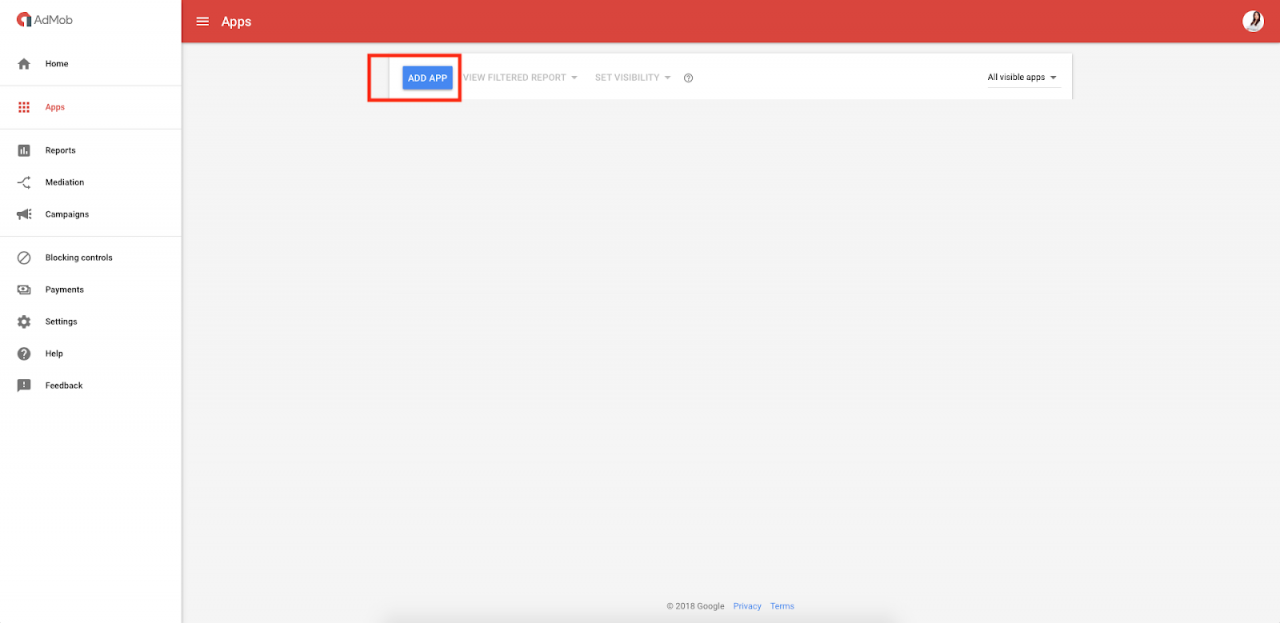
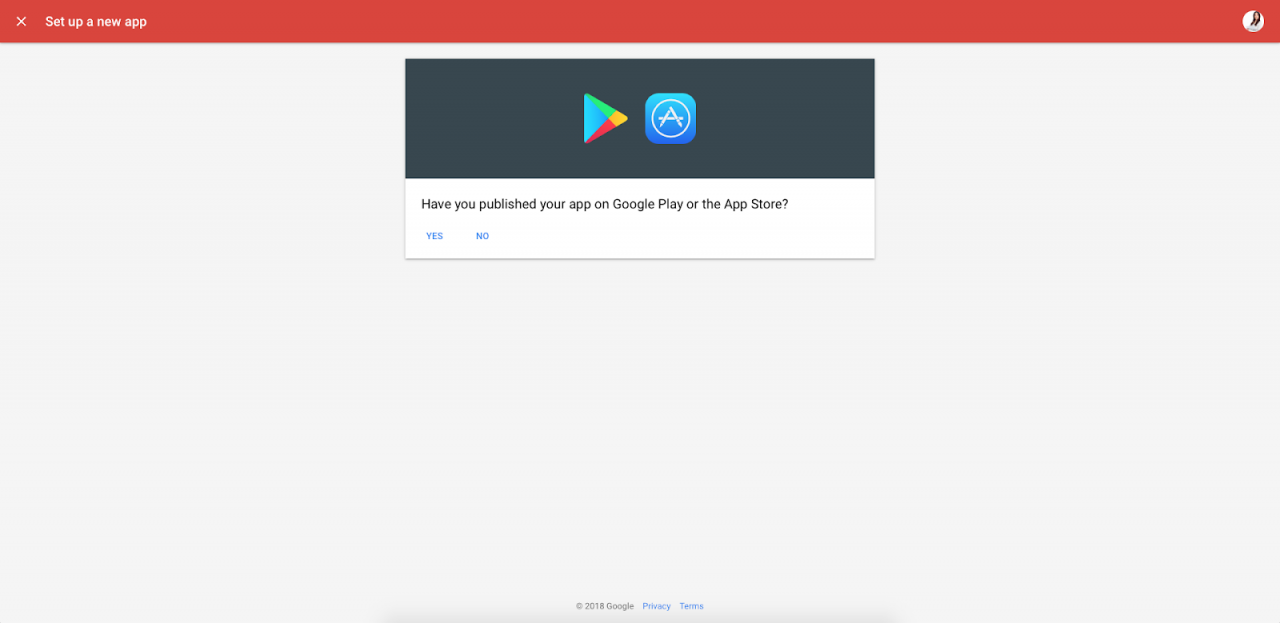
Select Platform
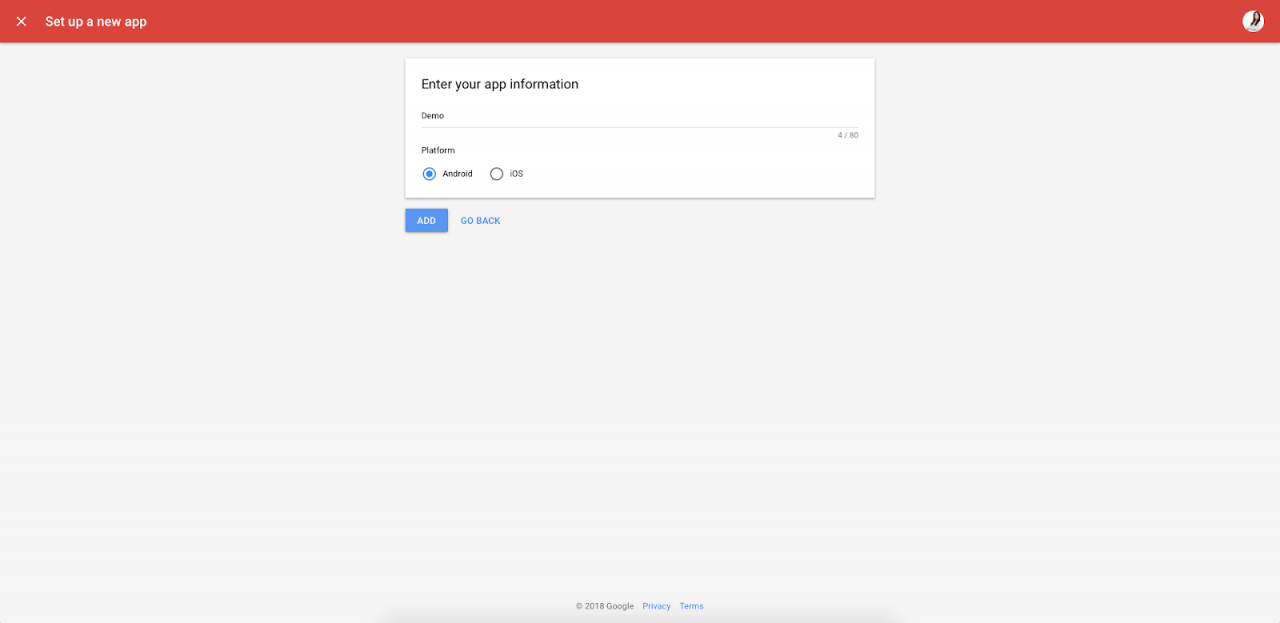
Fill App Information
Step 4
Create AdUnit
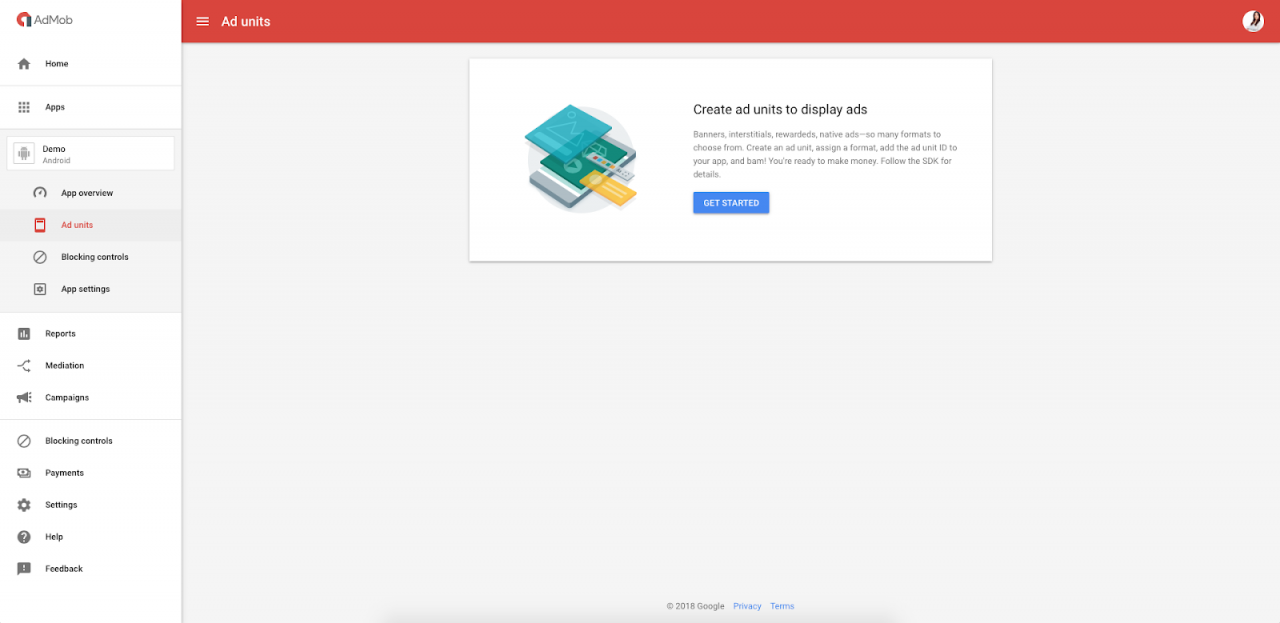
Select Ad Type
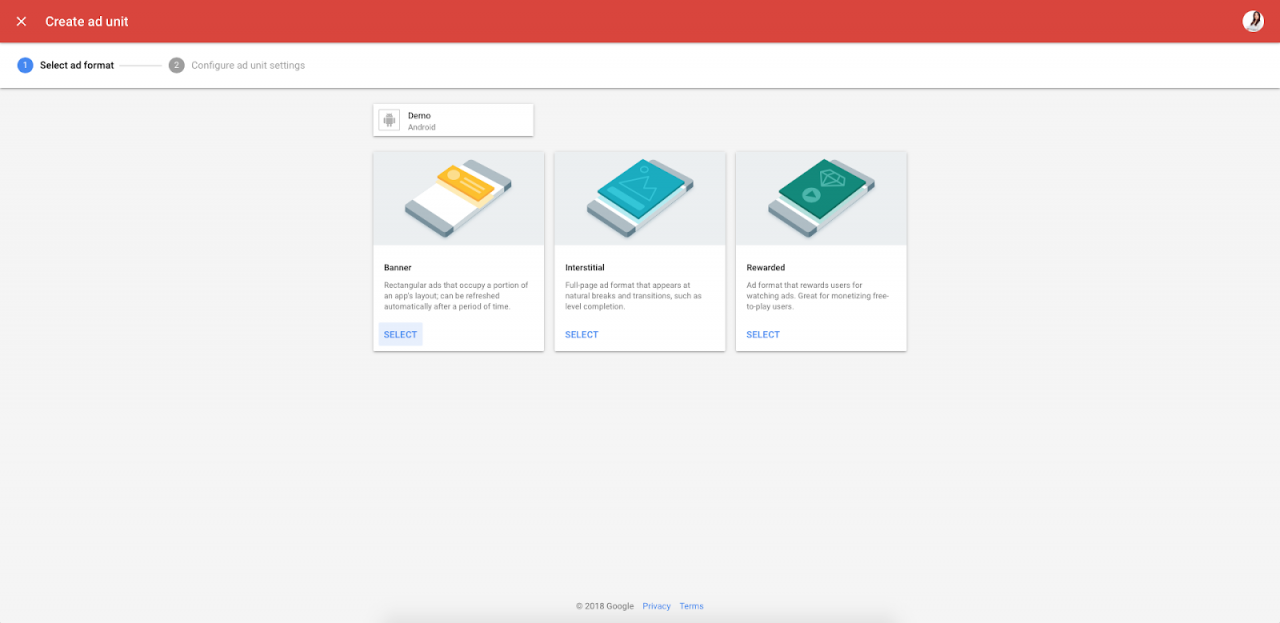
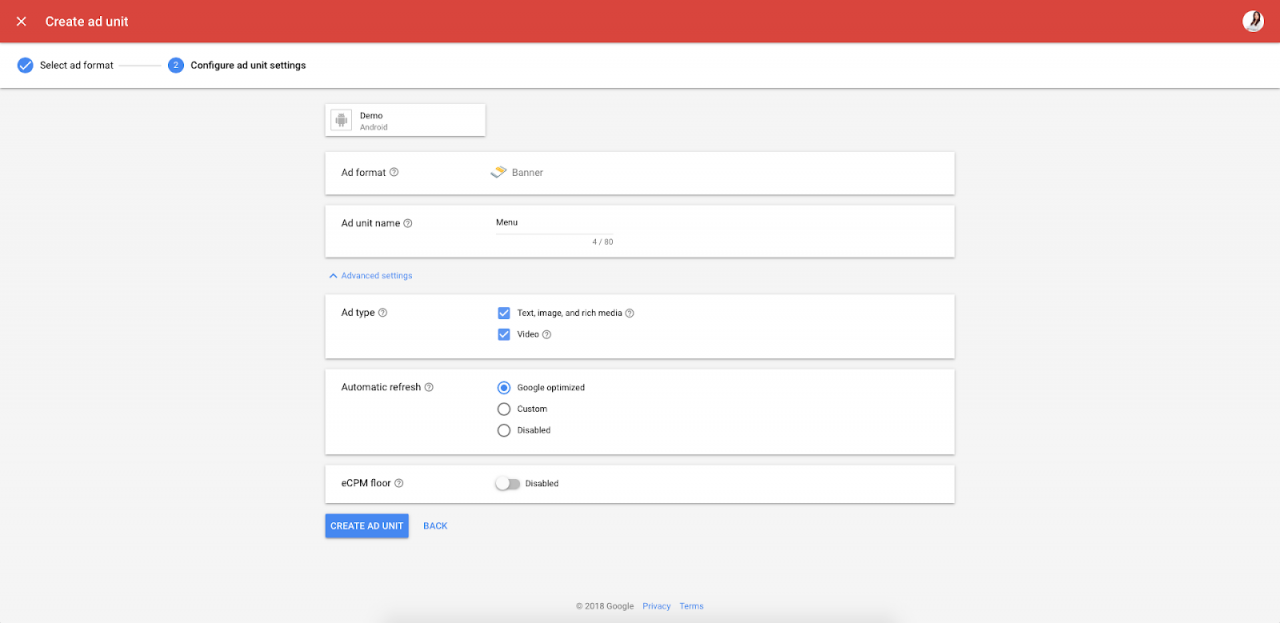
Ad Unit Settings
Ad Unit Created Successfully
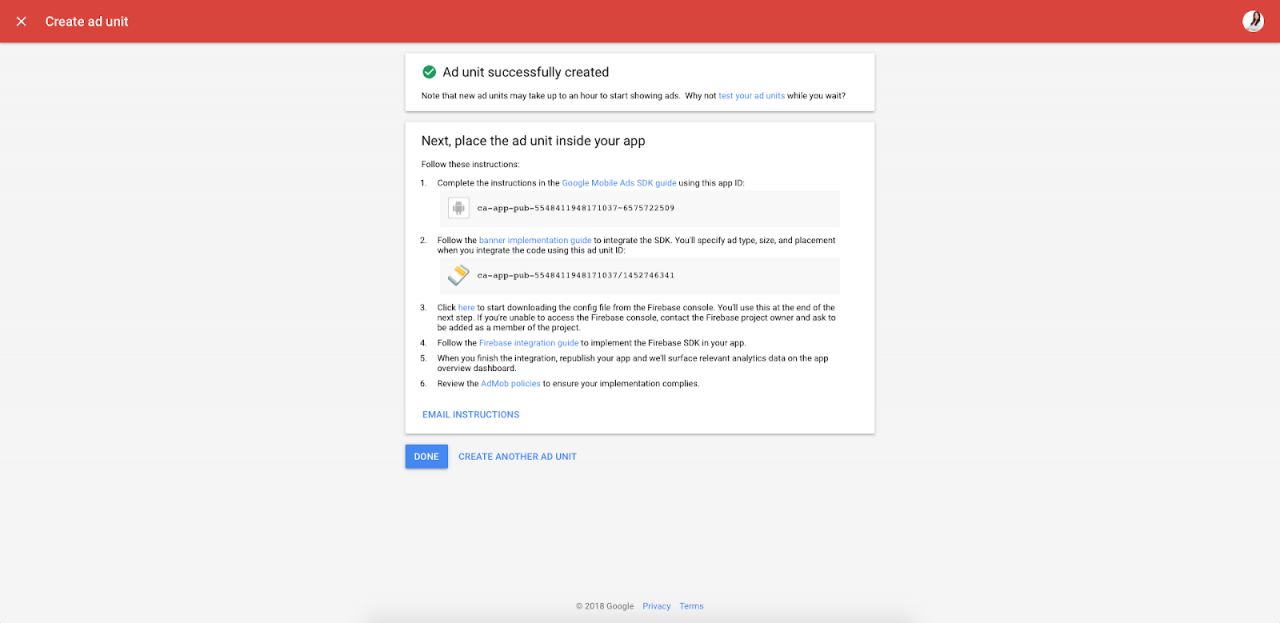
Same way create your required ad units (banner, interstitial and rewarded video).
Step 5
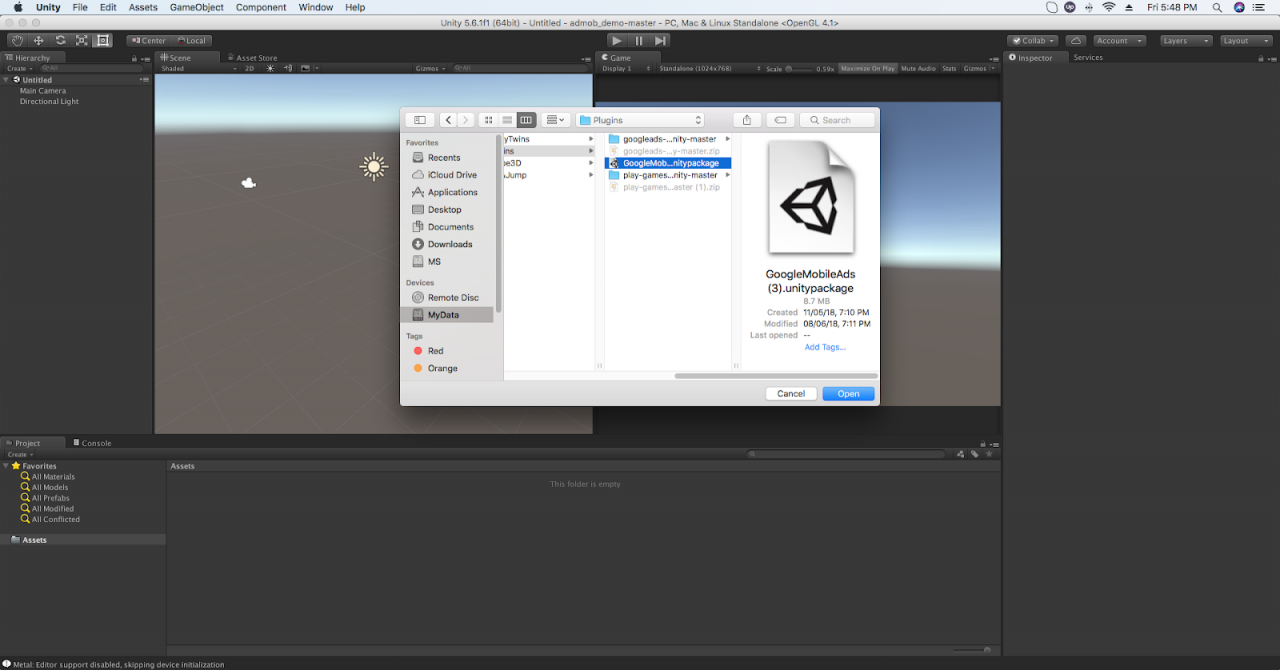
Import package to unity.
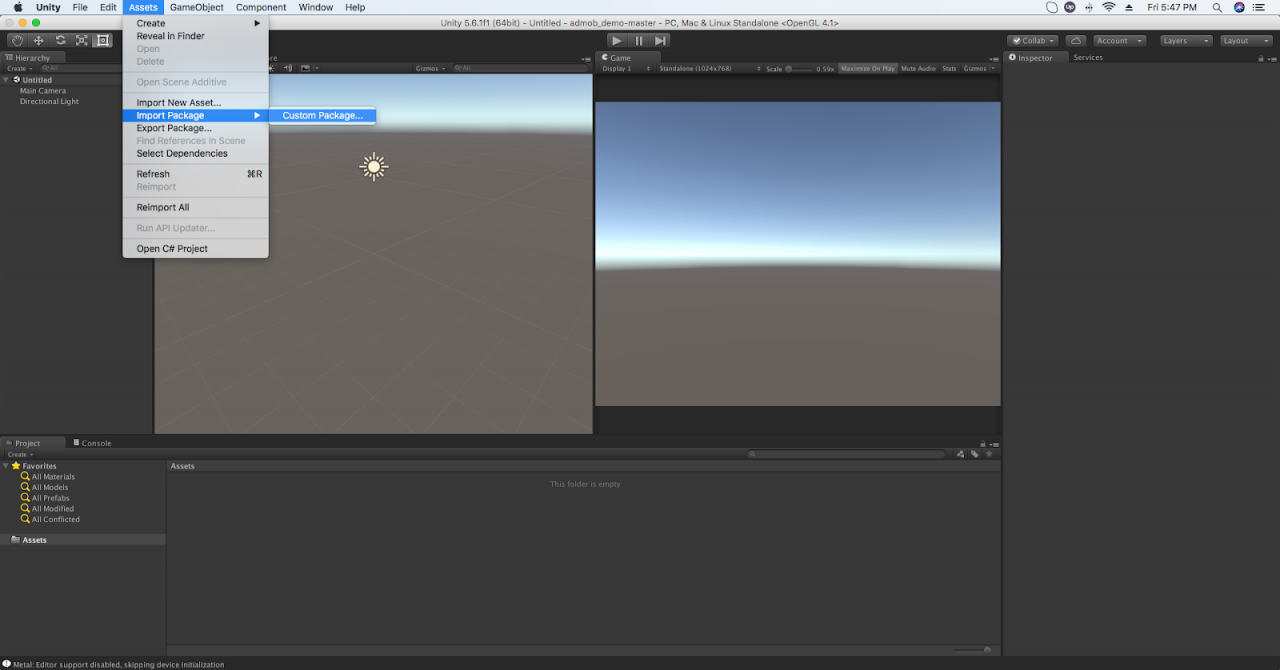
Select the downloaded AdMob package.
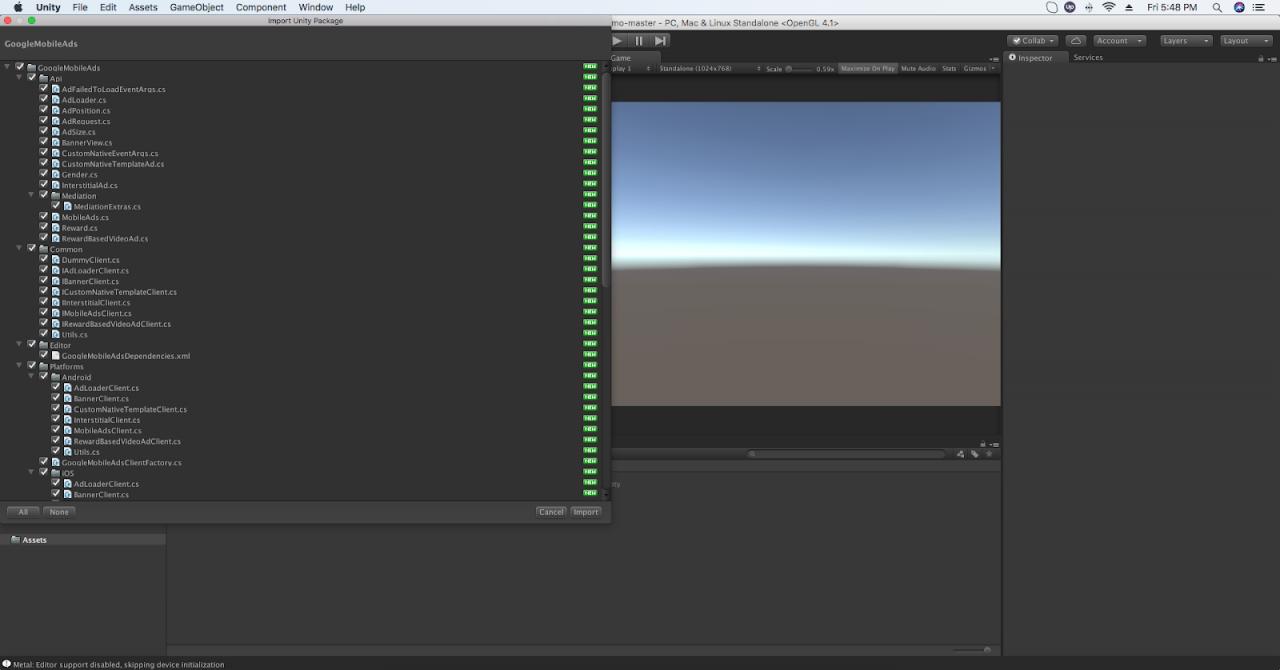
Here don’t forget to select all files and import.
Step 6
Initialize mobile ad SDK.
// Called only once
public void Initialize ()
{
    // These ad units are configured to always serve test ads.
    // REPLACE WITH YOUR APP ID
    #if UNITY_ANDROID
        string appId = "ca-app-pub-3940256099942544~3347511713";
    #elif UNITY_IPHONE
        string appId = "ca-app-pub-3940256099942544~1458002511";
    #else
        string appId = "unexpected_platform";
    #endif

    MobileAds.SetiOSAppPauseOnBackground(true);

    // Initialize the Google Mobile Ads SDK.
    MobileAds.Initialize(appId);

    // Get singleton reward based video ad reference.
    this.rewardBasedVideo = RewardBasedVideoAd.Instance;

    // RewardBasedVideoAd is a singleton, so handlers should only be registered once.
    this.rewardBasedVideo.OnAdLoaded += this.HandleRewardBasedVideoLoaded;
    this.rewardBasedVideo.OnAdFailedToLoad += this.HandleRewardBasedVideoFailedToLoad;
    this.rewardBasedVideo.OnAdOpening += this.HandleRewardBasedVideoOpened;
    this.rewardBasedVideo.OnAdStarted += this.HandleRewardBasedVideoStarted;
    this.rewardBasedVideo.OnAdRewarded += this.HandleRewardBasedVideoRewarded;
    this.rewardBasedVideo.OnAdClosed += this.HandleRewardBasedVideoClosed;
    this.rewardBasedVideo.OnAdLeavingApplication += this.HandleRewardBasedVideoLeftApplication;

}
Step 7
Banner Ad
private BannerView bannerView;

public void RequestBanner()
{
    // These ad units are configured to always serve test ads.
    // REPLACE WITH YOUR BANNER ID

    #if UNITY_EDITOR
        string adUnitId = "unused";
    #elif UNITY_ANDROID
        string adUnitId = "ca-app-pub-3940256099942544/6300978111";
    #elif UNITY_IPHONE
        string adUnitId = "ca-app-pub-3940256099942544/2934735716";
    #else
        string adUnitId = "unexpected_platform";
    #endif

    // Create a 320x50 banner at the top of the screen.
    this.bannerView = new BannerView(adUnitId, AdSize.SmartBanner, AdPosition.Bottom);

    // Register for ad events.
    this.bannerView.OnAdLoaded += this.HandleAdLoaded;
    this.bannerView.OnAdFailedToLoad += this.HandleAdFailedToLoad;
    this.bannerView.OnAdOpening += this.HandleAdOpened;
    this.bannerView.OnAdClosed += this.HandleAdClosed;
    this.bannerView.OnAdLeavingApplication += this.HandleAdLeftApplication;

    // Load a banner ad.
    this.bannerView.LoadAd(this.CreateAdRequest());
}

public void DestroyBanner()
{
    // Destroy banner ad
    this.bannerView.Destroy();
}
Step 8
Interstitial Ad
private InterstitialAd interstitial;

public void RequestInterstitial()
{
    // These ad units are configured to always serve test ads.
    // REPLACE WITH YOUR INTERSTITIAL ID

    #if UNITY_EDITOR
        string adUnitId = "unused";
    #elif UNITY_ANDROID
        string adUnitId = "ca-app-pub-3940256099942544/1033173712";
    #elif UNITY_IPHONE
        string adUnitId = "ca-app-pub-3940256099942544/4411468910";
    #else
        string adUnitId = "unexpected_platform";
    #endif

    // Create an interstitial.
    this.interstitial = new InterstitialAd(adUnitId);

    // Register for ad events.
    this.interstitial.OnAdLoaded += this.HandleInterstitialLoaded;
    this.interstitial.OnAdFailedToLoad += this.HandleInterstitialFailedToLoad;
    this.interstitial.OnAdOpening += this.HandleInterstitialOpened;
    this.interstitial.OnAdClosed += this.HandleInterstitialClosed;
    this.interstitial.OnAdLeavingApplication += this.HandleInterstitialLeftApplication;

    // Load an interstitial ad.
    this.interstitial.LoadAd(this.CreateAdRequest());
}

// Show Interstital
public void ShowInterstitial()
{
    if (this.interstitial.IsLoaded())
    {
        this.interstitial.Show();
    }
    else
    {
        MonoBehaviour.print("Interstitial is not ready yet");
    }
}
Step 9
Rewarded Video Ad
private RewardBasedVideoAd rewardBasedVideo;

public void RequestRewardBasedVideo()
{
    // These ad units are configured to always serve test ads.
    // REPLACE WITH YOUR REWARDED VIDEO ID
    #if UNITY_EDITOR
        string adUnitId = "unused";
    #elif UNITY_ANDROID
        string adUnitId = "ca-app-pub-3940256099942544/1033173712";     // Test Id
    #elif UNITY_IPHONE
        string adUnitId = "ca-app-pub-3940256099942544/1712485313";
    #else
        string adUnitId = "unexpected_platform";
    #endif

    // Create a rewarded video.
    this.rewardBasedVideo.LoadAd(this.CreateAdRequest(), adUnitId);
}

public void ShowRewardBasedVideo()
{
    if (this.rewardBasedVideo.IsLoaded())
    {
        this.rewardBasedVideo.Show();
    }
    else
    {
        MonoBehaviour.print("Reward based video ad is not ready yet");
    }
}

// Manage your reward task in “HandleRewardBasedVideoRewarded” method

public void HandleRewardBasedVideoRewarded(object sender, Reward args)
{
    string type = args.Type;
    double amount = args.Amount;
    MonoBehaviour.print(
            "HandleRewardBasedVideoRewarded event received for " + amount.ToString() + " " + type);

    // PERFORM YOUR REWARD TASK HERE
}
Step 10
iOS integration.
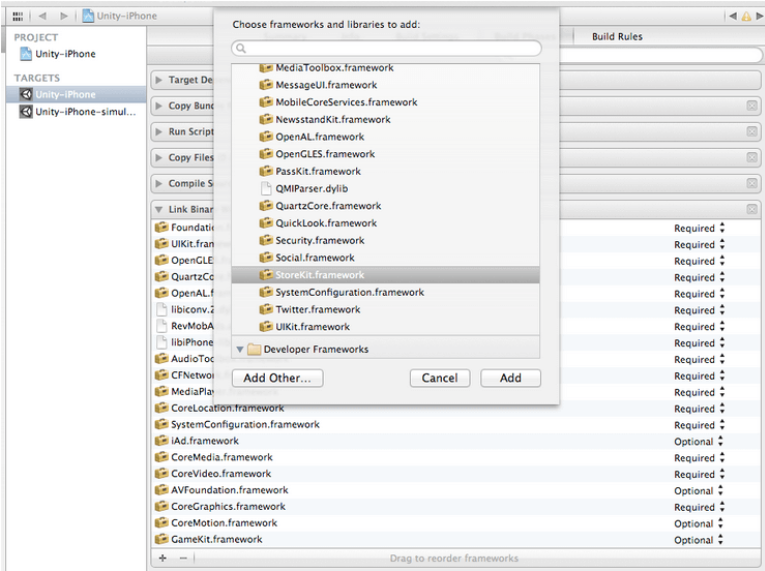
Add following 2 libraries in your iOS build before submission, if you already don’t have in your project.
- Storekit
- AdSupport
Like below…
And that’s it, you have successfully added ads to your game.
Download my full source code from here.
I hope you find this article helpful while integrating Admob. Let me know by posting a comment if you have any questions.


